Switching audio and subtitles in IPTV Smarters Pro on the iPad
It's late evening, the kids are in bed, and two people on the same couch want very different things from the same stream: one wants the original Spanish audio, the other needs English subtitles to keep up. IPTV Smarters Pro on the iPad handles both, and once you know where the controls sit, changing them takes a few taps. This guide walks through every step — finding the track menus during playback, choosing what sticks by default, and what to do when a track that should be there is missing.
Frequently asked questions
- Why does IPTV Smarters Pro sometimes switch back to the wrong audio track?
The app reverts to the stream's default track if no preferred language is saved in Player Settings, or if the stream reconnects after a brief dropout. Set your preferred language code in Settings and the app will re-select it automatically whenever the track is available.
- Can I use subtitles and a different audio language at the same time?
Yes. The audio and subtitle menus work independently, so you can play Spanish audio with English subtitles active at the same time, as long as the stream carries both tracks.
- The subtitle icon is there but nothing happens when I tap it. What is wrong?
If the stream uses burned-in subtitles — text rendered directly into the video — the in-app subtitle control has no effect. Try switching the player engine in Settings, as some external player options handle subtitle tracks that the internal player does not detect.
- Do my audio and subtitle preferences carry over when I switch channels?
If you have set a preferred language in Player Settings, the app applies it on each new channel that carries a matching track. The manual tap-to-select choice applies only to the current channel and resets when you switch.
- Does the iPad need a specific iOS version for the audio and subtitle menus to appear?
IPTV Smarters Pro requires a reasonably current iOS version — check the App Store listing for the minimum requirement. Keeping both iOS and the app updated is the simplest way to ensure the player controls display correctly.
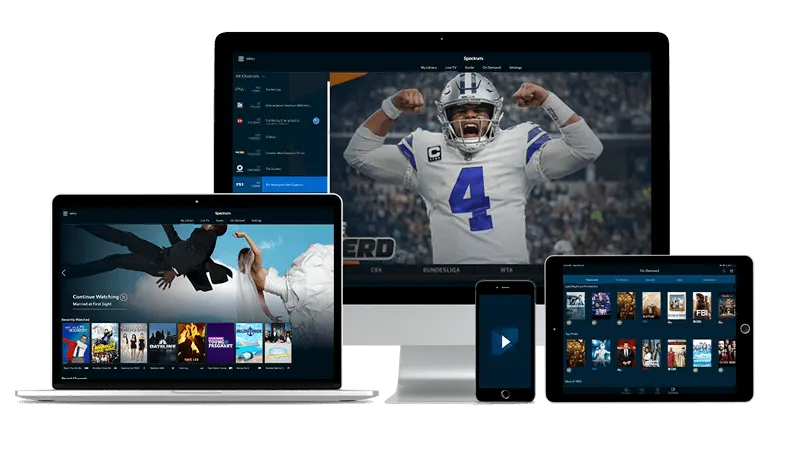
What the player gives you during playback
While a channel is playing, tap the screen once to bring up the player controls. Near the bottom or top edge of the player — the exact position shifts slightly with the app version — you will see a small icon that looks like a speech bubble or the letters 'CC', alongside an audio icon (sometimes a speaker with a note). These are your two entry points.
Tapping the audio icon opens a list of every audio track the stream is carrying at that moment. A stream from a multilingual broadcaster might list three or four options: the original language, a dubbed version, and a commentary track. Tap the one you want; the change takes effect in a moment, with no need to restart the channel.
Tapping the subtitle icon shows the available subtitle tracks, plus an option to turn subtitles off entirely. If the stream includes burned-in subtitles — text that is part of the video image itself — the subtitle menu has no effect on those; they are always visible regardless of what you select.
If you tap the screen and no icons appear, the player controls may have already faded. Tap again to wake them, and then tap quickly before they disappear.
Deciding which track to pick: a few questions worth asking first
Before reaching for the audio menu, it helps to think about what the stream is actually carrying. Not every channel encodes multiple audio tracks. A local news channel almost certainly carries one language only. A film channel or an international sports channel is more likely to offer a choice.
Ask yourself:
- Is this a live channel or a recorded VOD title? VOD titles, especially films, tend to have more tracks. Live channels vary widely.
- Does the stream come from a provider that serves multiple countries? Multi-region streams often bundle several dubbed audio tracks for different markets.
- Are the subtitles for accessibility or for translation? Accessibility subtitles (SDH) often include sound descriptions in brackets; translation subtitles do not. If the two look similar in the menu, play a minute of each to tell them apart.
If you are in a household where two languages are spoken day to day, it is worth opening the audio menu on a few different channels to get a feel for which ones carry the tracks you need. Some channels will always offer a choice; others never will, and knowing that in advance saves frustration.
Making your preferred language the default
IPTV Smarters Pro lets you set a preferred audio language so the app selects it automatically when it is available, rather than defaulting to whatever the stream lists first. To set this, go to Settings inside the app — usually a cog icon on the main screen — then look for Player Settings or Playback Preferences. Inside that menu you should find a field for preferred audio language and one for preferred subtitle language.
Type in the language code (such as 'eng' for English, 'spa' for Spanish, or 'fra' for French) or select from the list if the app shows one. Save and return to live viewing. On the next channel you open, if the stream carries a track in that language, the app will select it without any manual tap.
This setting is especially useful in a bilingual household where one viewer always wants Spanish audio and another always wants English subtitles. Each person can open the settings panel briefly before their own viewing session and switch the preference in a few seconds.
Subtitles can be set to off by default if most of your viewing does not need them, with the option to switch them on manually for the occasional film.
When the track you expect is missing
If a stream lists only one audio track where you expected several, the issue is usually one of three things.
First, the stream itself may not carry multiple tracks. That is not an app problem; it is simply how the channel was encoded. Try a different channel of the same type to compare.
Second, the player may not be reading the stream correctly. IPTV Smarters Pro offers a choice of internal player and an external one (such as the system player or a third-party option). Go to Player Settings and switch to a different player engine. Some stream formats expose their audio tracks only to one type of player.
Third, a network hiccup at the start of playback can cause the app to load an incomplete version of the stream manifest, which sometimes means only one track is detected. Stop the channel, wait a moment, and open it again. If buffering is a recurring issue rather than an occasional one, the guide on troubleshooting buffering in IPTV Smarters Pro on the Android tablet covers the common causes in detail — most of the router and network advice there applies equally to the iPad.
Subtitles that disappear mid-stream, rather than simply being absent at the start, are often a sign of a weak or inconsistent connection rather than an app setting.
Getting the app set up if you haven't yet
If you have not installed IPTV Smarters Pro yet, search for it by name in the Apple App Store on the iPad and install the free app. When you open it for the first time, it asks for a server address, a username and a password. Those three items arrive by email, usually within a few minutes of completing a subscription through Infomir IPTV. Enter them once on the welcome screen and the app moves straight to the channel list; you do not need to enter them again on subsequent opens.
Delivery runs entirely over the home internet connection — no dish, no cable socket and no additional hardware required. If the iPad is connected to Wi-Fi in another room from the router, a simple way to test whether distance is affecting quality is to move closer to the router and try the same channel. A strong, consistent connection makes the difference between audio tracks that switch cleanly and ones that stutter or reset.
For viewers who enjoy browsing by genre rather than scrolling a long list, the section on rock music channels: favorites, categories and search shows how the category and search tools work inside Smarters Pro — the same logic applies to any genre, not only music.